


LUT Converter
Not needed for XMP series monitors — XMP accepts .cube files natively.
The FSI LUT Converter is a free Mac application capable of converting .cube LUT files generated by DaVinci Resolve to the FSI .dat format for use with your FSI monitor.
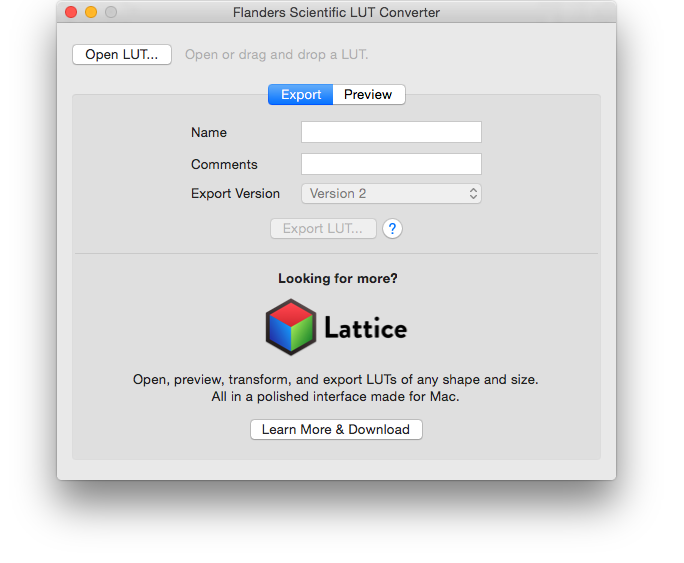
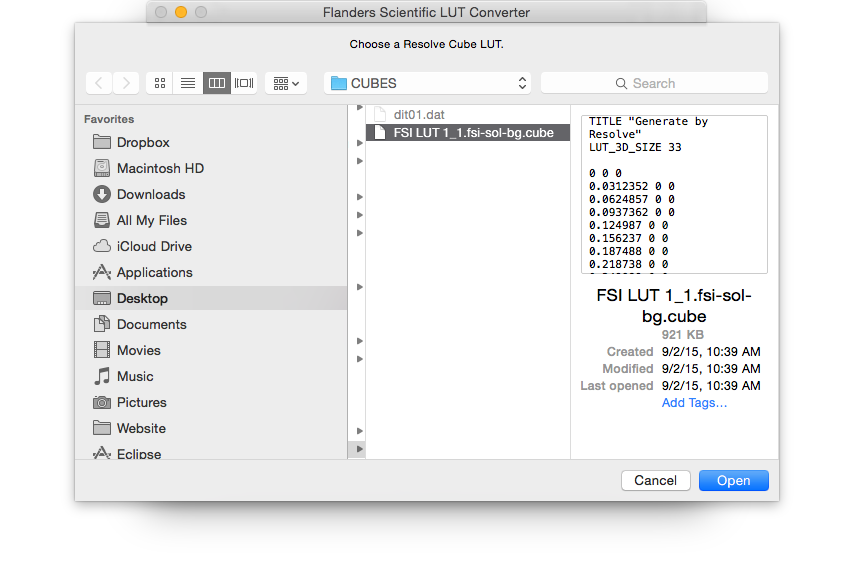
After opening the LUT Converter, simply click the Open LUT… button or drag your .cube file onto the application window.
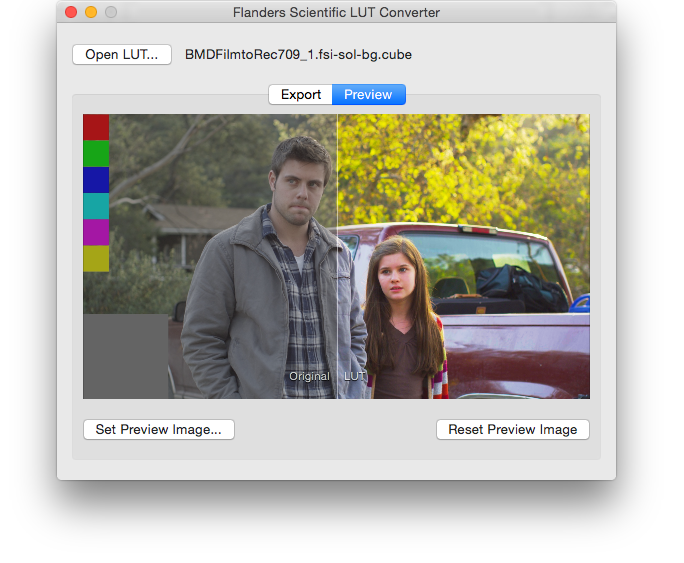
You can preview the loaded LUT by clicking the Preview button.
Select a different preview image with Set Preview Image… or restore the default with Reset Preview Image.
The center line of the preview window is horizontally draggable, letting you see more or less of the image with and without the LUT applied.
In the Export window, enter the Name for your LUT in the name field — this is what's displayed when toggling the LUT on your FSI monitor.
The data entered in the comments field will be embedded in the LUT and can be seen if viewing the LUT with a text editor.
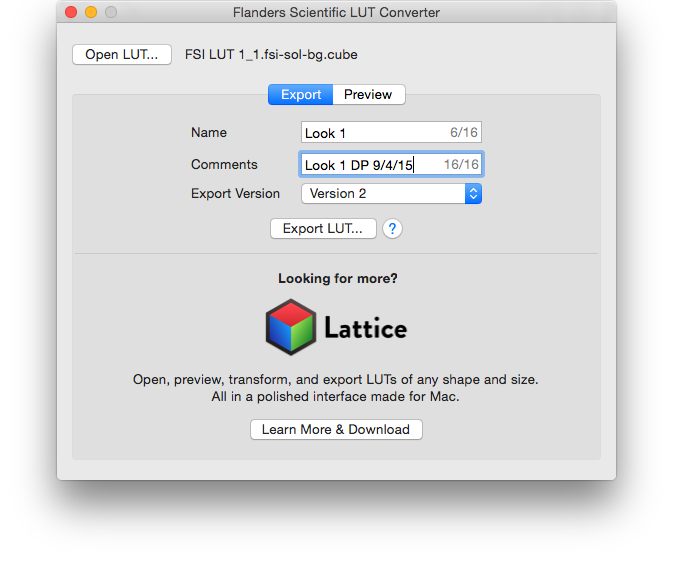
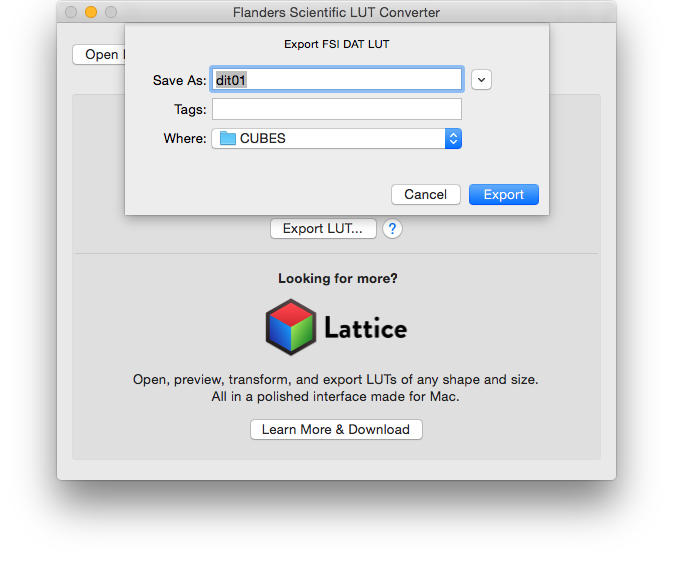
Click Export LUT… to export your .cube in FSI's .dat format.
In the Save As field, enter a valid DIT file name. Valid names use the format DIT01, DIT02, DIT03 … DIT16 — one for each of the 16 LUT positions available on a BM, CM, or DM series monitor.
If you're already connected to an FSI monitor with DIT LUT support via update cable, you can save the LUT directly to the monitor instead of your computer by selecting it from the Where dropdown.
This is a specific version of LightIllusion's ColourSpace CMS that converts LUTs into FSI's .dat format for import to the DIT/Look LUT position on any Flanders Scientific monitor equipped with a CFE2 or CFE3 board. If you just want a simple, very easy-to-use utility to convert quickly from virtually any standard LUT format to FSI's .dat format, this is the program for you.
This version of ColourSpace can import virtually any type of LUT, including those generated in DaVinci Resolve. Conversion and export to FSI's .dat format takes just a matter of seconds.
This is a Windows application, but it runs well in Parallels or other Windows virtualization software on a Mac. For a native Mac alternative, see the FSI LUT Converter on the .
This affordable application is available for purchase here.
Open ColourSpace and click on the Space Management button.

Click the Import LUT button, select the LUT you wish to import for conversion, then click Open.

Expand the working LUTs list to find your imported LUT. Click on the LUT in the list, then set your LUT export selection to FSI and [3D] FSI17_32bits (*.dat). Then click Export.

Name the file dit01.dat, dit02.dat, dit03.dat … all the way up to dit16.dat for the 16 available DIT LUT positions on BM, CM, and DM series monitors, then press Save.
Once saved, LUTs can be transferred to the monitor's memory and activated as outlined in the corresponding monitor user manuals.